

How to Track Google AI Mode Traffic in Search Console
On June 3, 2026, Google introduced Search Generative AI performance reports in Search Console, offering dedicated views of impressions from AI Overviews and AI Mode. This official reporting finally shows how often those features surface your pages, but it has two major gaps: it doesn’t include the underlying queries, and it’s only available in the UI. I re-verified on my own property on August 11, 2026, that neither the Search Analytics API nor the BigQuery bulk export exposes this generative AI data, so there’s no official way to see AI Mode traffic at the query level.
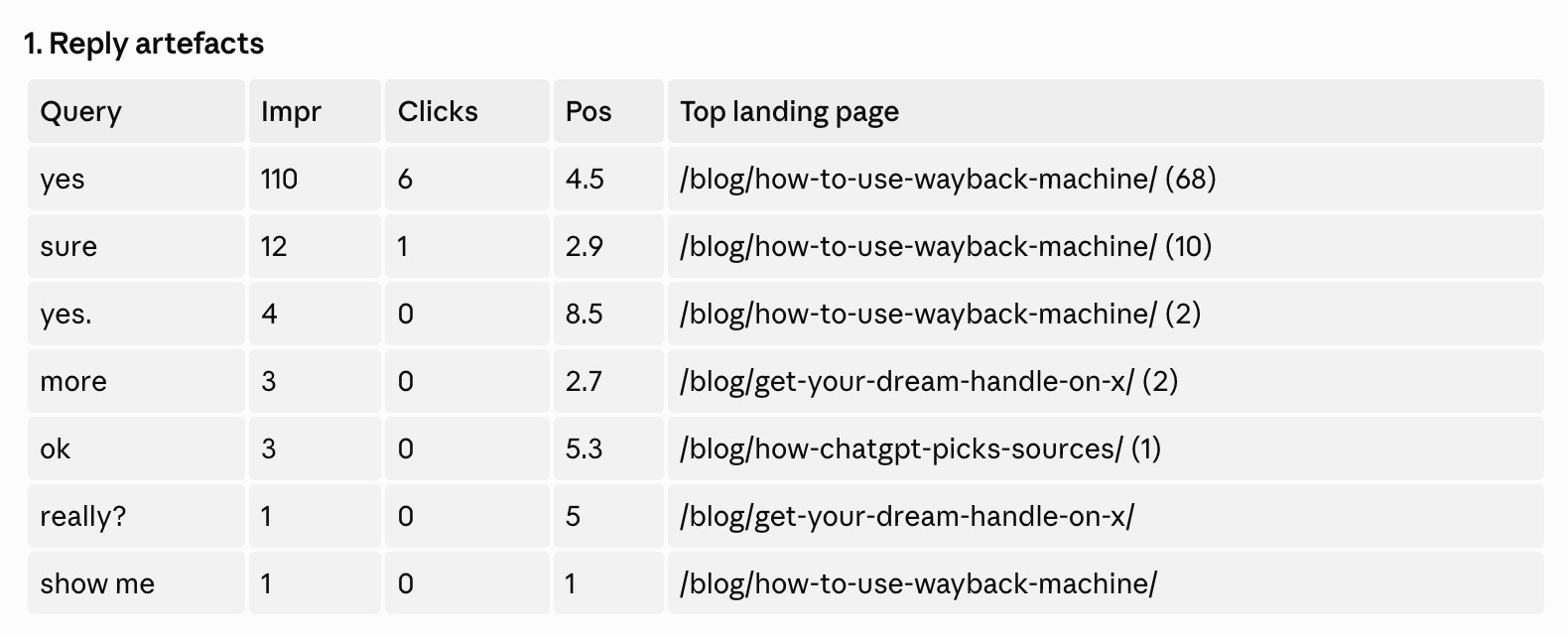
The queries, however, show up anyway. Fragments of real AI conversations—replies like “yes go on,” follow-ups, and entire pasted prompts—have been appearing as ordinary queries in the performance report. Anastasia Kourou posted about these strange strings on LinkedIn, and Google’s John Mueller replied, confirming this data had always been in the performance report and pointing to Google’s documentation.
I’ve written the full account with 16 months of my own data separately and deployed my method of extracting these queries via my Google Search Console MCP. Below are the practical ways to surface AI queries in Search Console, plus a free tool powered by my own custom-trained machine learning model that labels them automatically.
The Scramble for the Queries
Once the leak became public, SEOs started building ways to pull those queries out.
The first wave, back in June 2025, used word-count regex to surface long conversational queries by length alone—anything 32+ words, for example. Barry Schwartz rounded up those early attempts, crediting Metehan Yeşilyurt, Vijay Chauhan, and David Konitzny. The approaches have become far more targeted since.
Method 1: Glenn Gabe’s Full Inventory in Excel
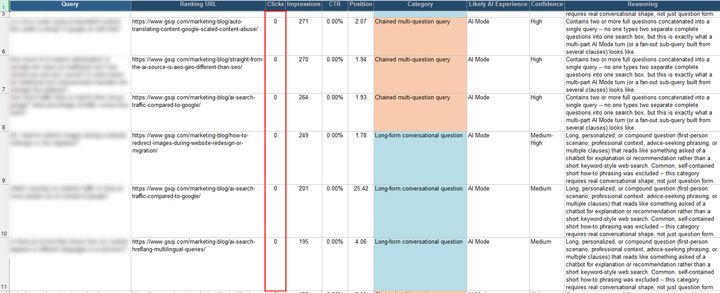
The performance report UI caps any table at 1,000 rows, so on a large site most of your query data is hidden before you even start. Glenn Gabe’s approach skips the UI entirely. He pulls the complete query set through the Search Analytics API using Analytics Edge in Excel, then has Claude organize the list and flag likely AI Mode queries. If you already work in Excel, this puts the full inventory inside a workflow you know.
Method 2: Jean-Christophe Chouinard’s Custom Regex
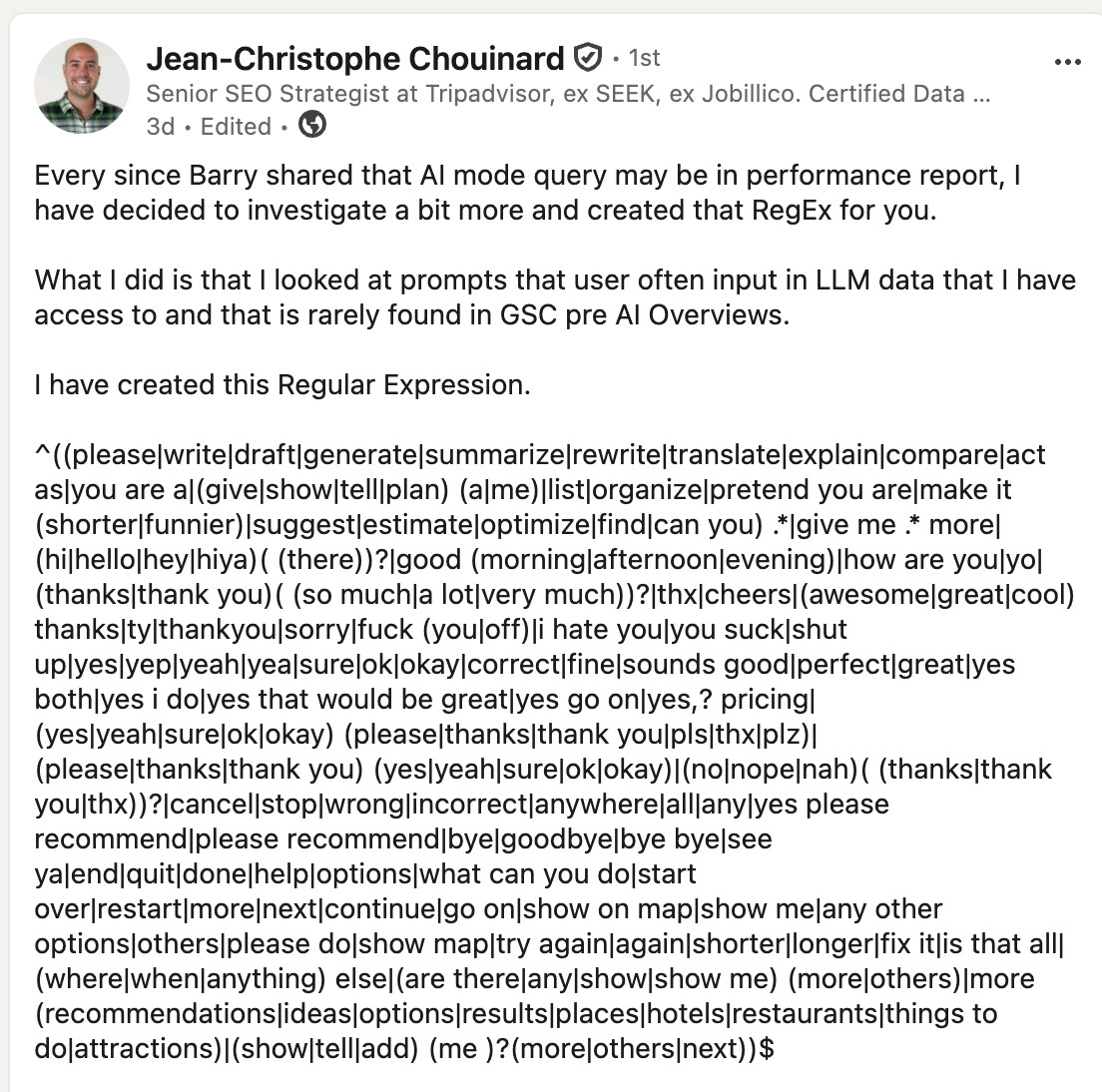
Jean-Christophe Chouinard approached the same problem from inside the report. On August 14, 2026, he shared a regex pattern that flags conversational strings directly in the performance report’s Query filter, using the Custom regex option. He built it by comparing prompts people commonly type into LLMs—from data he has access to—against strings rarely seen in GSC before AI Overviews.
The result is one long alternation covering prompt verbs (write, draft, generate, summarize, explain, act as), greetings, acknowledgements (yes, ok, sounds good, yes go on), refusals, and follow-ups (more, continue, show me more, any other options). Paste it into the filter for an instant, free look inside the report you already have open.
Separately, his January 12, 2026 case study showed that AI Mode clicks are tracked in Search Console, but the queries behind them are almost exclusively anonymized—a caveat that applies to every method here.
Method 3: Amin Foroutan’s Advanced GSC Visualizer
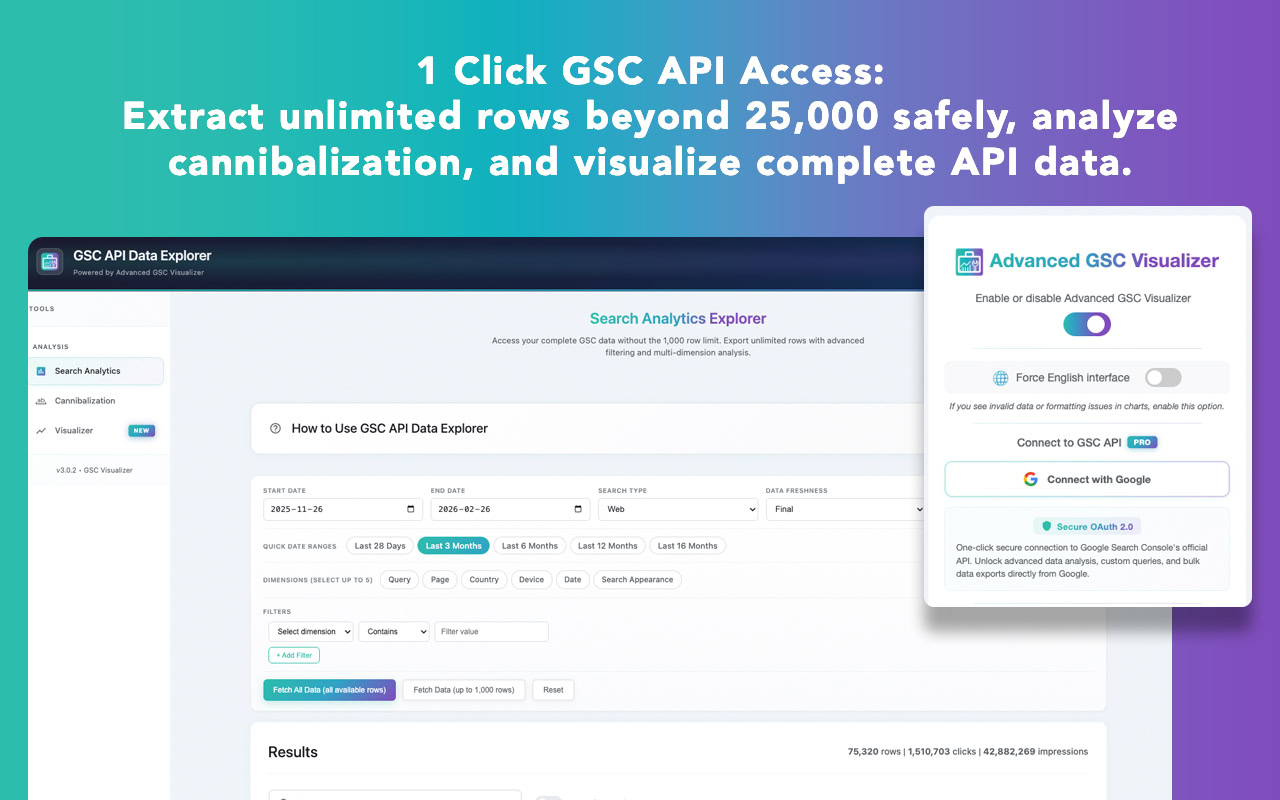
Amin Foroutan’s Advanced GSC Visualizer is a free Chrome extension that adds advanced charting, annotations, and an AI assistant to your Search Console data, with one-click API access. It doesn’t include an AI Mode-specific filter.
Method 4: My MCP Servers
My Search Console MCP has a built-in conversation detector as a tool called genai_conversation_queries, and my BigQuery MCP runs the same detector against the bulk export, where the anonymized pool of queries lives. Both run locally, so your data only moves between you and Google. Their strength is automation and scale, with query-level labels on every row. The limitation is setup rather than detection—you need an MCP client and a config, making them better suited for technical users.
The 4 Methods Side by Side
| Method | Strong at | Limits |
|---|---|---|
| Glenn Gabe, API into Excel with Claude | Full query inventory in an Excel workflow | Per-run sorting, pattern-based |
| Jean-Christophe Chouinard, custom regex | Instant free filter inside the report | English pattern list |
| Amin Foroutan, Advanced GSC Visualizer | Charting and exploring without exports | No AI Mode-specific filter |
| My MCPs | Automation and scale, labels on every query | Needs an MCP client and config |
Look down the Limits column and the first three share a gap. Pattern lists and per-run sorting can’t reliably catch edge cases like rank tracker probes, agent harness prompts, pasted strings, or “my location is” probes. They’re also built for English, so a reply in Tamil or a code-mixed Hinglish string slips through unlabelled. Method 4 aims to address this with a custom ML model.
Why This Needs an ML Model
Classifying every query into named buckets, across languages, while including the weird machine-generated strings, is very difficult to do accurately with conventional methods. There are too many edge cases. The only reliable way to make this work is to train a machine learning model.
So I decided to build one.

How I Built the Detector
The detector has two parts. Deterministic rules handle the exact classes—reply artifacts, tracker probes, agent harness prompts—while a trained model owns the fuzzy boundary between conversational, long tail, and ordinary queries.
The model is FacebookAI’s xlm-roberta-base, pre-trained on 100 languages and fine-tuned on my own labelled Search Console conversation exhaust plus synthetic rows across eight languages, including code-mixed Tanglish and Hinglish. I validated it across just over 120,000 scored queries and retrained it twice on whatever broke. It runs quantized on a scale-to-zero Cloudflare container, and the same model now powers a free tool anyone can use without any setup.
The Tool
That tool is the AI Mode and AI Overview query classifier, free on this site, with no sign-up or email required.
If the GSC MCP route sounded like effort, this is the same detector with that effort removed.
How It Works
Drop in Search Console or BigQuery query exports as CSV, and several files stack into one run.
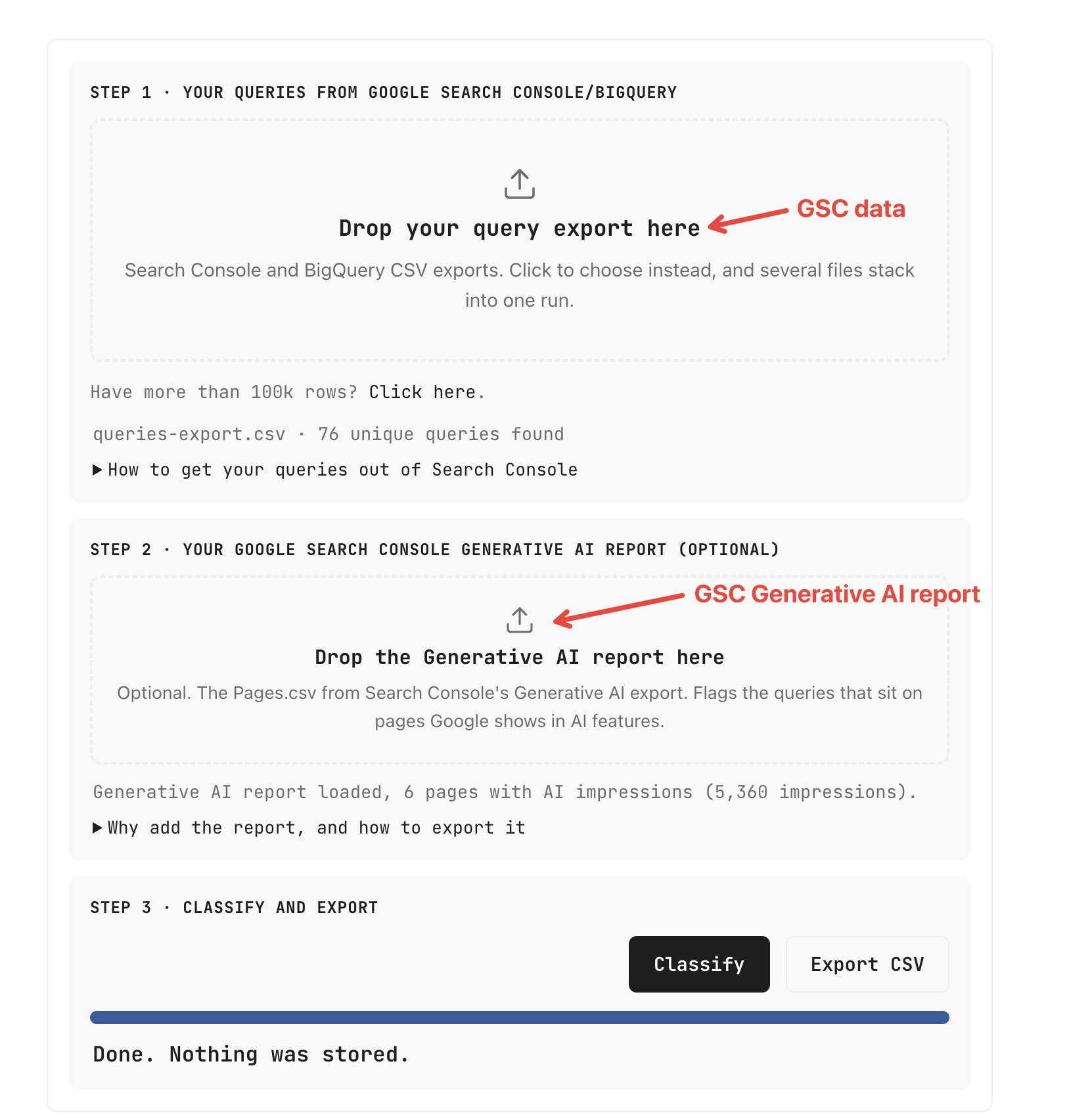
Step 1: The model classifies your queries into one of seven buckets.
Step 2: If you add a Search Console generative AI report, the tool extracts page data and maps it against your queries. (In your report, you’ll see an “AI page” column. The full URL appears when you export the CSV.)
The deterministic rules label the obvious buckets right in your browser, and those queries never leave your device. I designed it this way to minimize the amount of data I process and to speed things up.
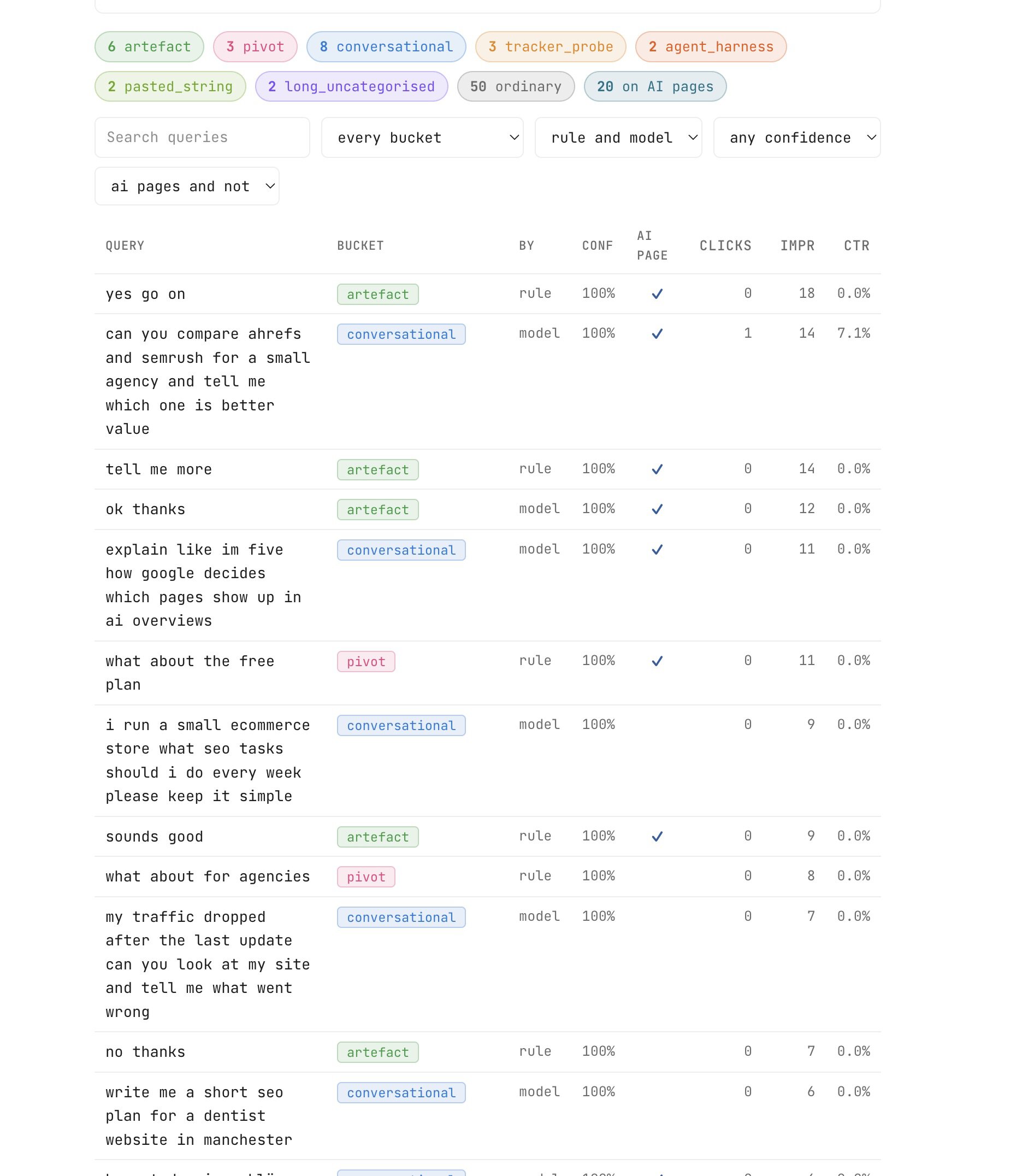
Everything else goes to the model, gets classified in memory, and nothing is stored. Each query comes back with a bucket and a confidence score. The buckets are: full conversational queries, short replies like “yes go on,” follow-up pivots like “what about the pro plan,” rank tracker probes, agent harness prompts, pasted strings, and ordinary searches. You can filter by bucket, classifier, and confidence, then export every labelled row to CSV with no row cap.
How to Use It
Five steps, start to finish.
- Get your queries out. Under about 1,000 queries, the performance report’s normal export is already complete. Bigger sites can stack several filtered exports, pull the full list through the API with Search Analytics for Sheets or Looker Studio, or dump the BigQuery bulk export table to CSV. If you’re an SEO, you already know how to get more than 1,000 queries from GSC.
- Drop the CSV or CSVs onto the page.
- Press Classify.
- Filter or search the labelled table.
- Export the labelled CSV.
Limitations
The tool comfortably handles up to 100,000 unique queries per run in the browser, and a large run requires keeping the tab open—which I accept is a very 2010 way to compute. The second limitation applies to every method of tracking AI Mode in Google Search Console, mine included. Google anonymizes rare queries; conversation strings are rare, and part of the pool never appears, so treat the output as an undercount. My BigQuery export shows 57.7% of my impressions sat in the anonymized pool over the last 59 days, measured on August 11, 2026.
The model costs real money to run, and as you may know, I don’t sell anything and none of my tools require sign-ups or paywalls. So I have to put some limitations and caps in place so everyone can use this tool.
Please play nice. You don’t want to be the person who ruins things.
The tool is in beta, and if many people start using it, it will slow down and processing may take longer. In that case, wait and try again.
Also, please note I offer my time and expertise free of charge, so don’t demand customer support. Yes, I have to write this because some people don’t act like reasonable adults.
Over 100,000 Queries
Above 100,000 unique queries, we need to do a batch run instead. Send yours in, and my agency runs it as a proper batch job, then emails you the complete results. We can also turn the findings into a full, actionable report or help with your wider AI SEO work.
More Resources:
- Google Now Reports AI Search Impressions. Here’s How To Read Them
- How To Track AI Traffic In GA4 Without Undercounting It
- AI Visibility Measurement: What To Track & What To Ignore
This post was originally published on Suganthan.
Featured Image: Roman Samborskyi/Shutterstock